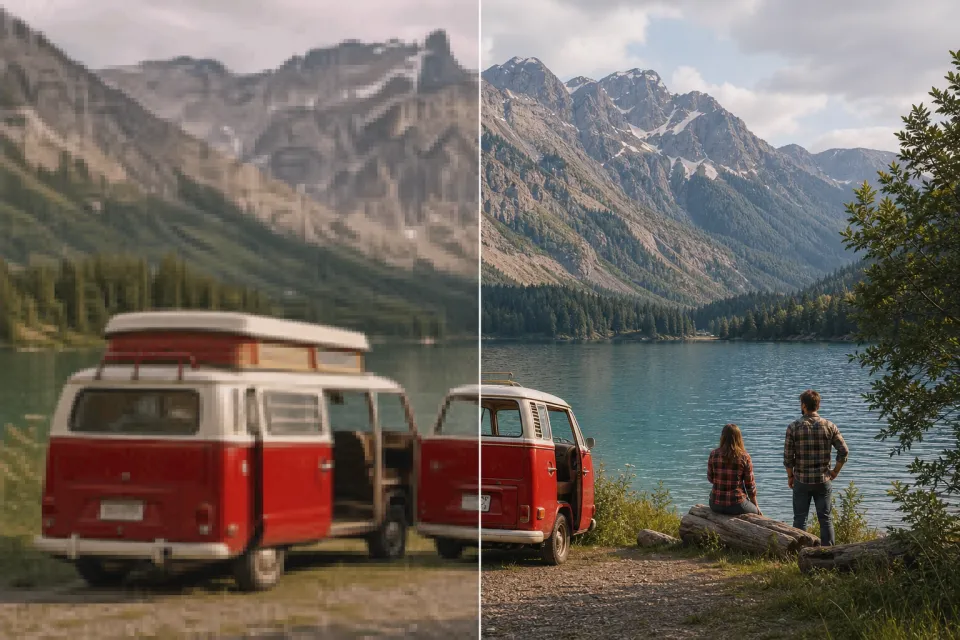
BeforeAfter
Old Travel and Family Videos
Give older low-resolution recordings more usable dimensions for modern displays, presentations, archives, and memory reels.
Increase video resolution in your browser with Free Video Upscaler. Choose fast high-quality scaling or optional WebGPU neural enhancement, preview the result, and download without uploading your footage.
Upscale entirely on this device
No video uploadChoose a browser-readable MP4, WebM, MOV, M4V, or OGV video. Short clips work fastest.
Local file — never uploadedChoose output scale
Processing happens locally and plays the video while recording enhanced frames. Keep this tab open. Export format and audio support depend on your browser, usually WebM or MP4.
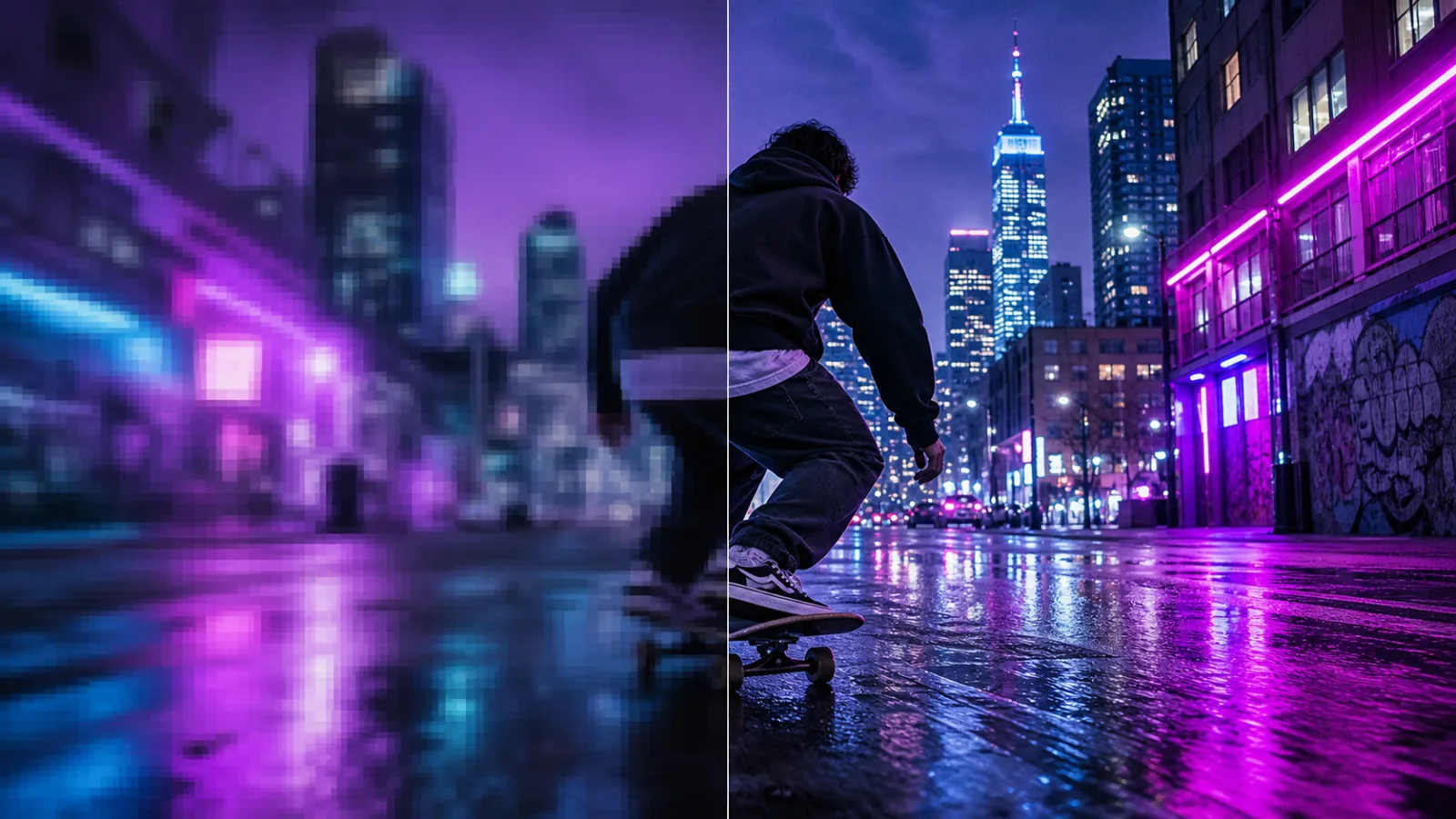
Upscaling increases pixel dimensions and can make edges, shapes, textures, and line work look clearer on larger screens. The most visible improvement usually comes from clean, moderately compressed source footage.
Give older low-resolution recordings more usable dimensions for modern displays, presentations, archives, and memory reels.
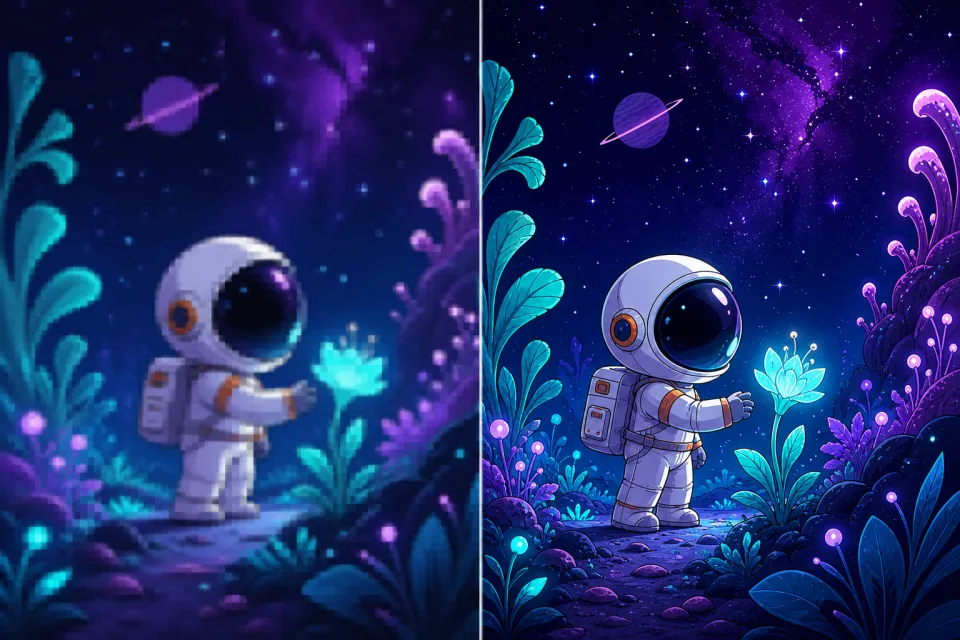
Neural enhancement can make outlines and flat-color boundaries look cleaner, especially in animation and screen-captured artwork.
These illustrative comparisons explain the kind of clarity improvement upscaling targets. Actual results vary with source resolution, compression, motion, content, browser, and device performance.
The tool decodes your video frame by frame, increases the pixel grid, enhances visible structure, and records the processed canvas into a new local file. Nothing needs to enter a cloud render queue.
Your browser reads the selected file through a temporary local URL and decodes frames using built-in media support.
Standard mode uses high-quality resampling for 2× or 4× output. AI mode uses a compact 2× convolutional network.
Edge-aware neural processing or gentle contrast enhancement helps the larger frame look clearer than simple nearest-neighbor stretching.
The enhanced canvas is recorded locally with the best export format available in your browser, ready for review and download.
Choose the enhancement path that fits your device, keep control of private footage, and create a larger video without installing desktop software.
Turn 480p into 960p, 720p into 1440p, or use 2× scaling to bring 1080p footage toward 4K dimensions when device limits allow.
On supported devices, run a compact super-resolution network locally for real-life footage, animation, or 3D and game content.
Use high-quality Canvas resampling when WebGPU is unavailable or when predictable cross-browser processing matters more.
Inspect the source, play the finished output, confirm its pixel dimensions, and review the file before downloading.
The complete browser workflow is free to use without account creation, usage tokens, payment details, or branded overlays.
Your source video stays on your device. The tool does not upload footage to Free Video AI for enhancement or storage.
Personal videos, client drafts, product recordings, classroom material, and unpublished content can be enhanced inside the active browser tab. Free Video Upscaler uses local browser APIs and optional WebGPU acceleration.
Prepare smaller or older footage for current screens, creator workflows, presentations, archives, and social publishing.
Increase the working resolution of family clips, camcorder footage, digitized tapes, and personal archives before editing or sharing.
Use the animation model to strengthen line boundaries and improve the appearance of cartoons, motion graphics, and illustrated video.
Scale older gameplay captures, screen recordings, and 3D renders for modern layouts and larger playback windows.
Prepare an older or downloaded source for a higher-resolution vertical, square, or landscape social edit.
Make interface elements, product details, diagrams, and recorded demonstrations easier to see in presentations or help content.
Improve the dimensions of lecture clips, historical footage, science demonstrations, and training media for classroom displays.
Choose a local file, select the right scaling engine, and download the enhanced result in three straightforward steps.
Drop a browser-readable video into the tool. Check the detected source resolution, duration, and planned output size.
Use Standard mode for broad compatibility or WebGPU AI mode for neural detail enhancement on a supported device.
Keep the tab open while frames are enhanced, play the local result, confirm the resolution, and download the new file.
After increasing resolution, flip mirrored footage or split the enhanced video into a focused clip with the other free local tools.
Generate
Try the hosted multimodal H3 demo, watch official examples, and follow the open H3-Base deployment path.
Open free toolEnhance
Increase video resolution by 2× or 4× with private local processing and optional WebGPU neural enhancement.
Open free toolMirror
Flip a video horizontally, vertically, or both ways with a private preview and local browser export.
Open free toolCut
Choose an exact start and end time, preview the source, and export a focused clip without uploading it.
Open free toolExplore practical Free Video AI guides before your next edit. Learn what resolution can and cannot fix, how local browser tools protect source footage, and how to prepare clips for publishing.
Understand pixel dimensions, interpolation, neural super-resolution, compression, and why source quality still matters.
Recommended guideLearn how zero-upload tools reduce exposure for personal recordings, client drafts, and unpublished creator footage.
Recommended guidePlan resolution, aspect ratio, orientation, clip length, and final review before posting to modern platforms.